
Introduction
Product attributes in Dynamics 365 Finance and Operations allow you to capture additional product-specific information without customization. Once an attribute group is assigned to a product category, those attributes become available automatically for any product linked to that category. In this post, we will assign a previously created product attribute group to a previously created sample product and review how the attributes appear at the product level.
Assigning the Attribute Group to Product Category
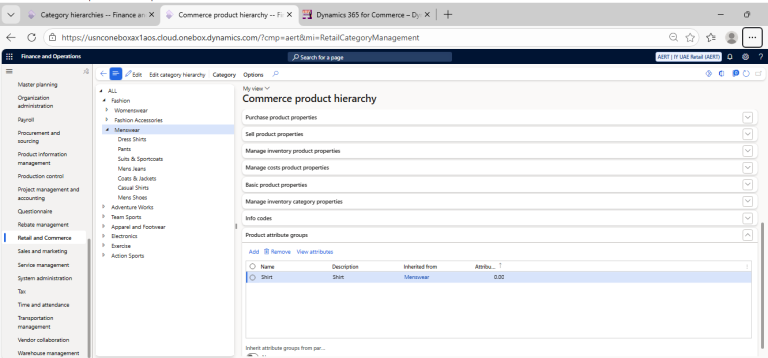
Retail and Commerce> Products and Categories > Commerce Products Hierarchy > Select the Electronic > Audio to which Attribute group need to assign then click on Product Attribute Group tab > Click on Add > Search for AERT-Shirt > OK
Assigning the Category to the Product
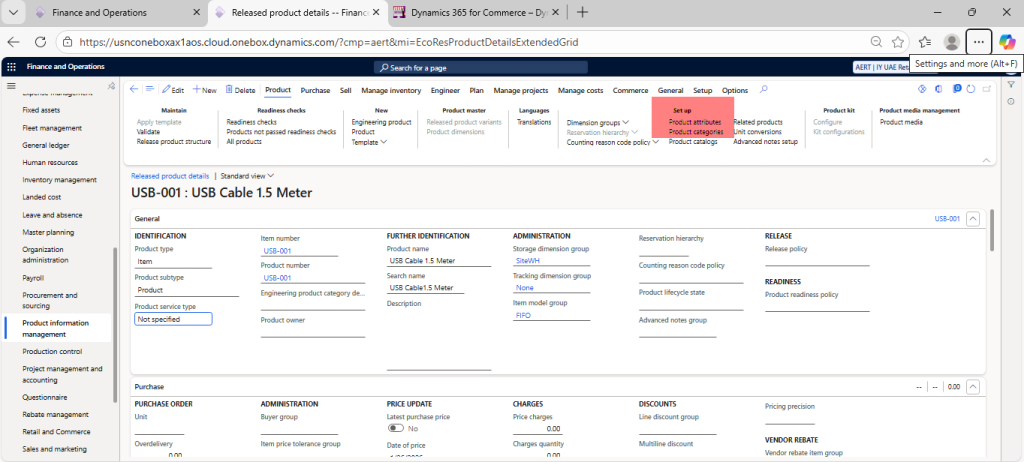
Open the sample product that was created in the previous post. Click on Product Menu > Click on Product Category under set up > Choose Electronic > Audio
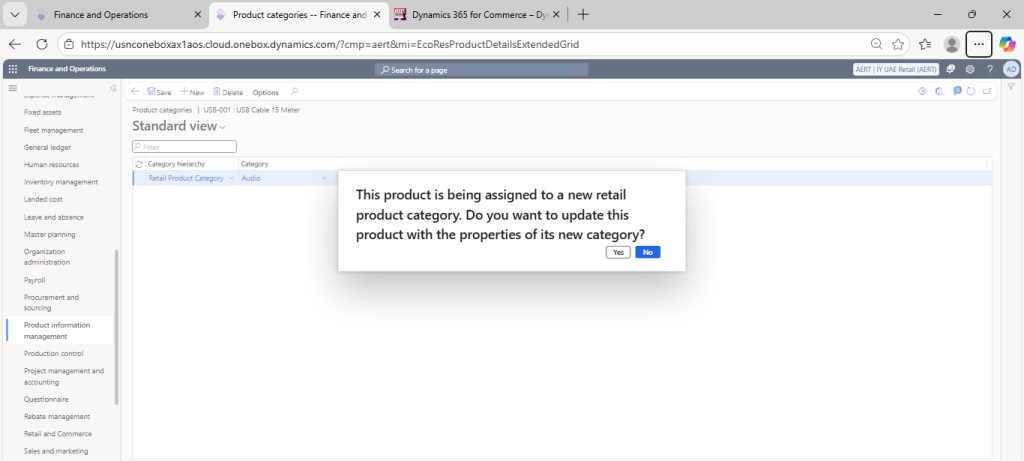
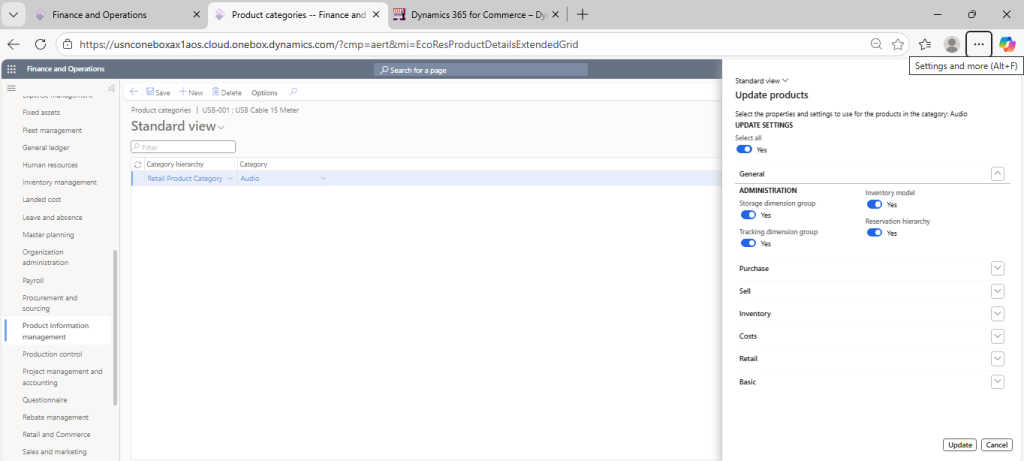
Click on Yes and Choose Select All option in Dialog and Click on Update
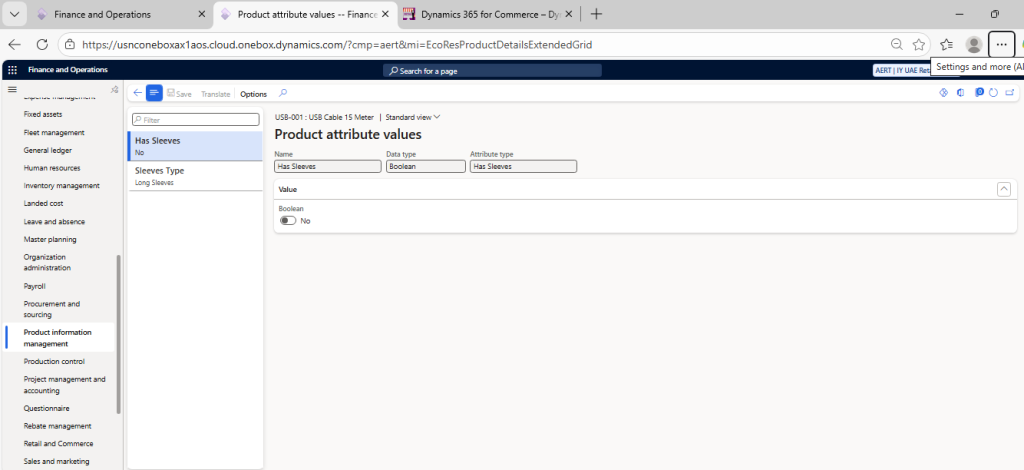
Click on Product Menu > Click on Product Attribute under set up > You will see the Product Attribute assign to Product Category.
Conclusion
By assigning a category with an associated attribute group to a product, Dynamics 365 Finance and Operations dynamically enables attribute management at the product level. This approach ensures flexibility, scalability, and consistency in product data maintenance, all while avoiding unnecessary customizations.