

Introduction
Variant Groups—such as Size, Color, and Style Group—are used together with product dimensions for Product Masters in Dynamics 365 Finance & Operations. They define the allowed list of values for each product dimension and ensure consistency across product variants.
When a Variant Group is not assigned to a Product Master, users must manually enter all product dimension values. For example, sizes (Small, Medium, Large) and colors (Red, Green, Blue) would need to be defined individually for each product, which increases maintenance effort and the risk of inconsistency.
Using Variant Groups simplifies product setup, improves data quality, and standardizes variant creation.
Variant Group Setup Overview
Before assigning Variant Groups to a Product Master, you must first define the individual dimensions (such as Size and Color) and then group them logically.
Step 1: Creating Sizes
Product Information Management > Setup > Dimension and Variant Groups > Size
- Open the Size form.
- Click New
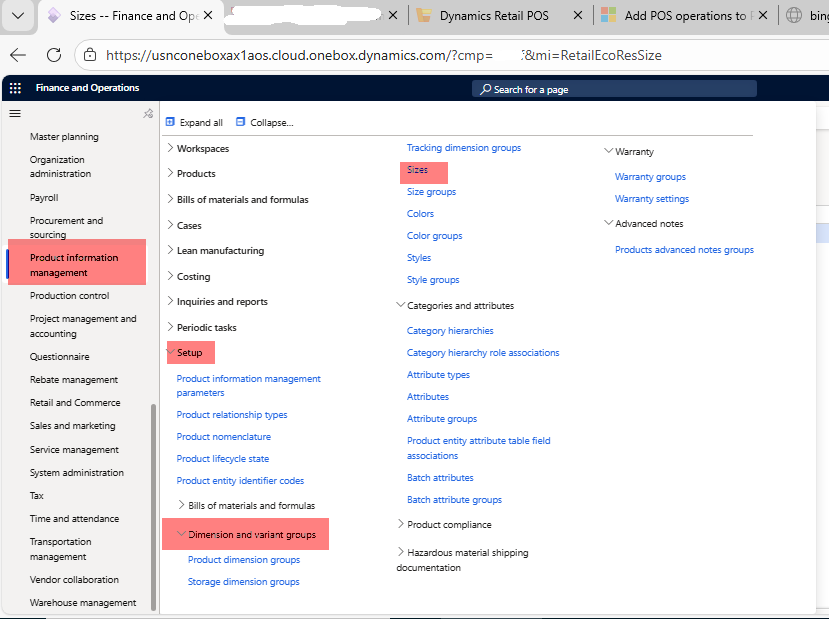
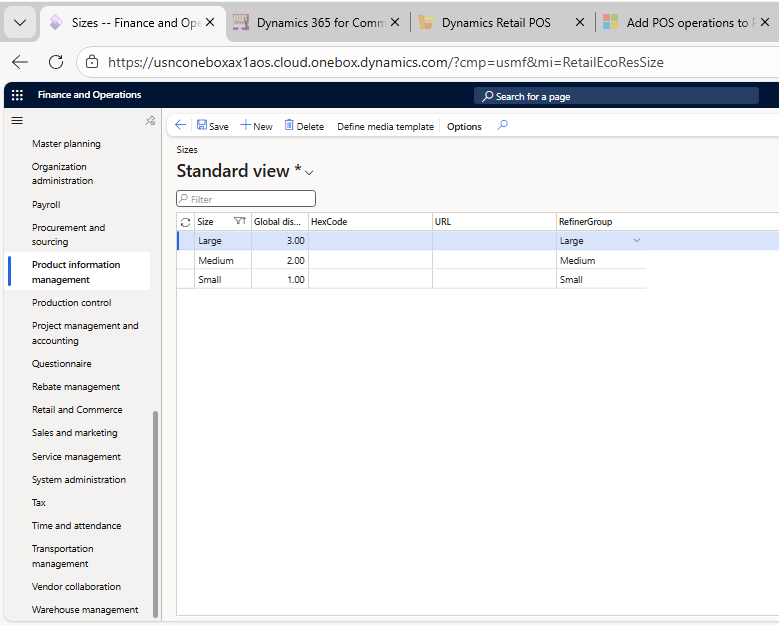
3. Create the required size values, for example:
- Small
- Medium
- Large
Save each record after creation.
Step 2: Creating a Size Group
Once the sizes are defined, group them into a Size Group.
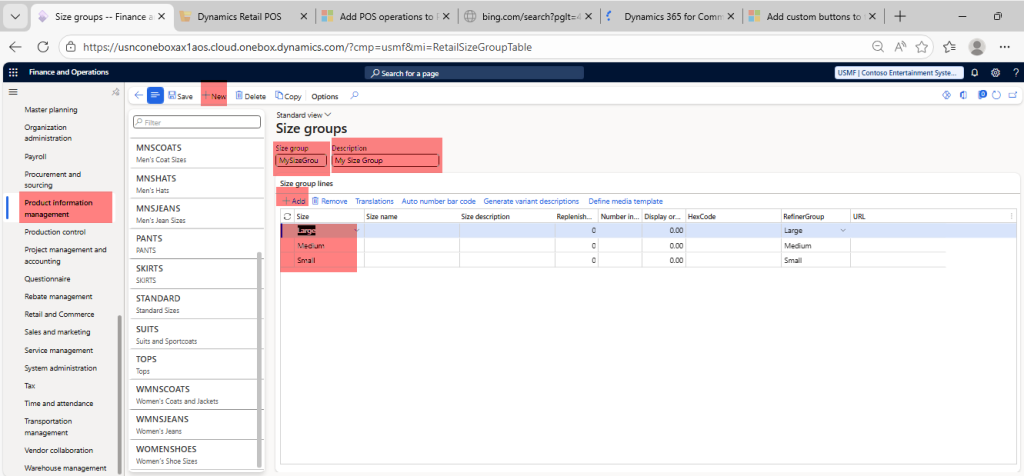
Product Information Management > Setup > Dimension and Variant Groups > Size Group
- Click New.
- Enter the following details:
- Size Group: MySizeGroup
- Description: My Size Group
- Add the previously created sizes:
- Small
- Medium
- Large
- Save the Size Group.
Step 3: Creating Color and Style Groups
Repeat the same process for other product dimensions:
- Color → Create individual color values (e.g., Red, Green, Blue)
- Color Group → Group the colors together
- Style and Style Group → Define and group styles if applicable
This consistent approach ensures all dimensions are managed centrally.
Assigning Variant Groups to a Product Master
The Size Group, Color Group, and Style Group are assigned to the Product Master during product definition. Once assigned, the system automatically provides the allowed dimension values when generating product variants.
This approach:
- Reduces manual effort
- Ensures standardized variant combinations
- Improves overall product data governance
NOTE: Variant Group are assign at creation of Product Master at Global Level. It’s not working from Released Product from
Creating Product Master and Assigning Variant Group to it
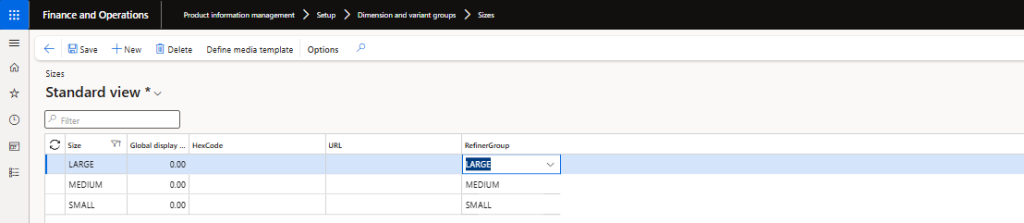
Sizes (Small,Medium,Large) Navigate to Product Information Management > Setup > Dimension & Variant Group > Sizes
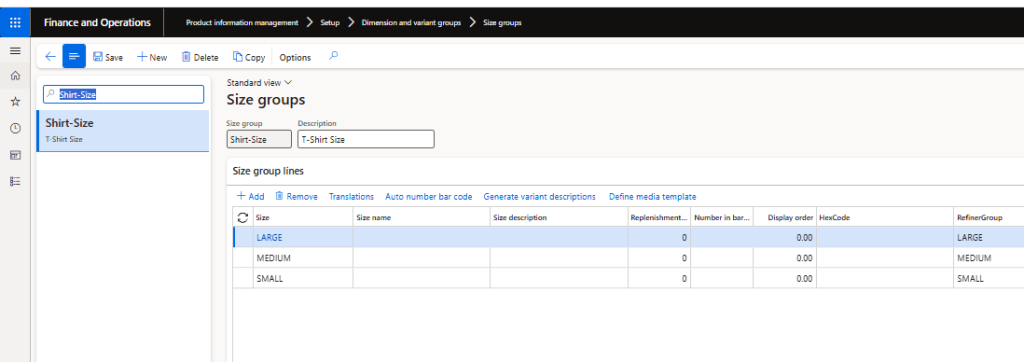
Size Group (TShirt-Size) Navigate to Product Information Management > Setup > Dimension & Variant Group > Size Groups
Create Colors and Color Groups using above methods
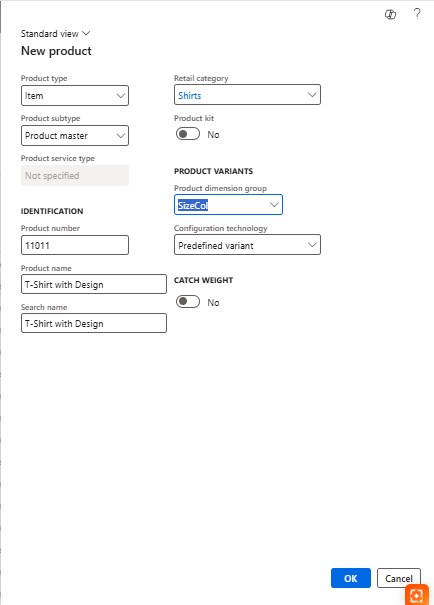
Now we will create Product Master and Assign Size Group to it
Navigate to Product Information Management > All Products and Product Masters > Click New
- Product Type: Item
- Product Sub Type: Master
- Product Number: 11011
- Product Name: T-Shirt with Design
- Search Name: T-Shirt with Design
- Retail category: Shirts
- Product dimension group: SizeCol
On General tab > Assign Size & Color Groups, See yellow hightighted area
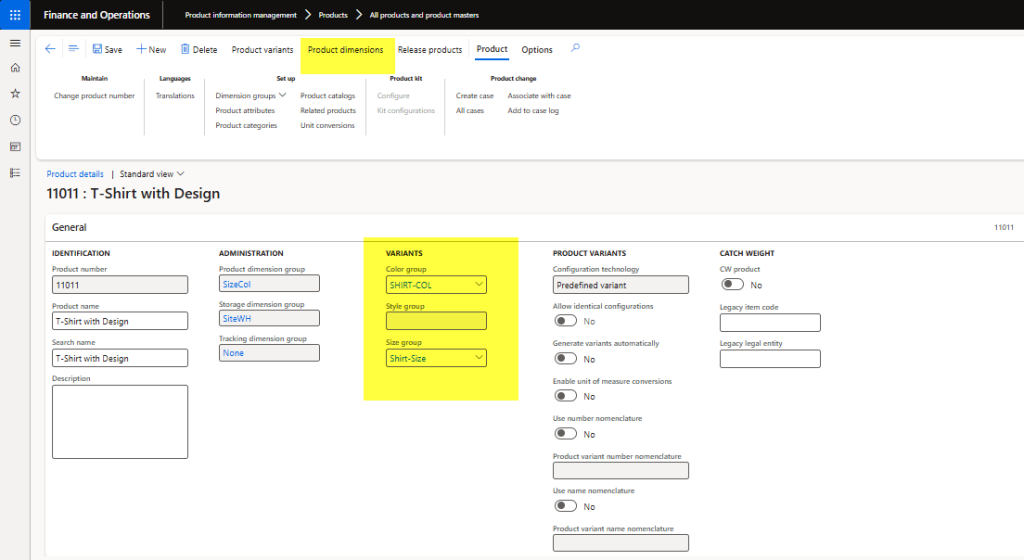
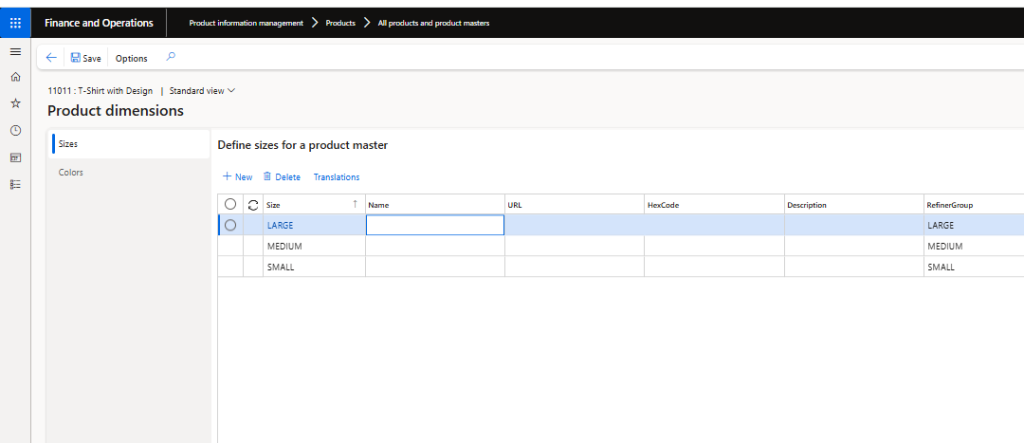
Click on Product Dimension Menu, You will see all Sizes but for Color we need to add manually becuase Color Group is not yet created.
Now Click on Product Variants Menu to Generat all possible Products Variants