

Overview
Product attributes are used to capture additional Information/details about products that are not available by default. Attributes allow us to track custom product information without requiring any development work. This makes attributes a powerful and flexible feature in Dynamics 365 Finance and Operations (D365 F&O).
Note: Attributes can not be added directly to individual products, instead they must be assigned to Categories.
One of the key advantages of product attributes is that they are dynamic and driven by product categories. Attributes cannot be added directly to individual items, Instead, they must be assigned to categories. When a product is linked to a category, all associated attributes automatically become available for that product.
By using Retail Product Category Hierarchies along with Attribute Groups, attribute management becomes faster, more organized, and easier to maintain.
Example Scenario
For apparel products such as shirts, you may want to track:
- Whether a shirt has sleeves
- The type of sleeves (Long or Short)
This can be achieved easily using product attributes and attribute groups.
Step-by-Step: Creating Product Attributes and Attribute Groups
Step 1: Create Attribute Types
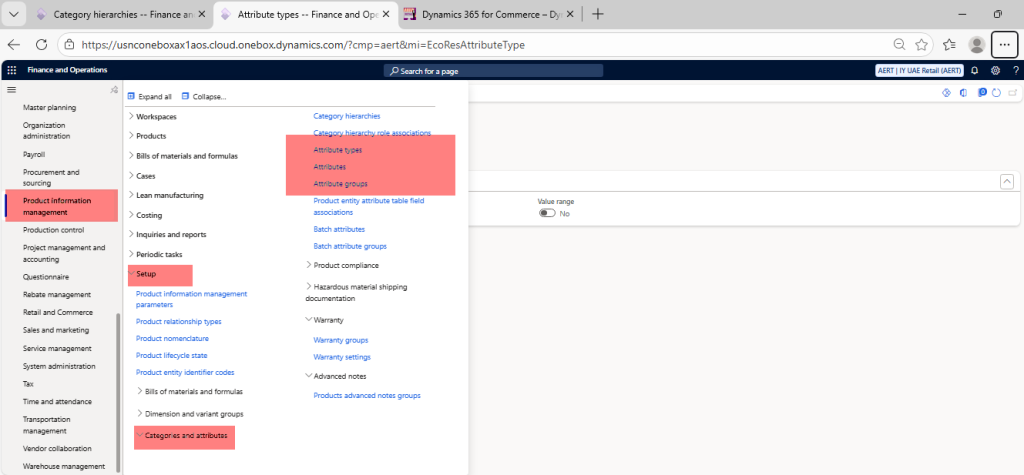
Navigate to:
Product Information Management > Setup > Attributes > Attribute Types
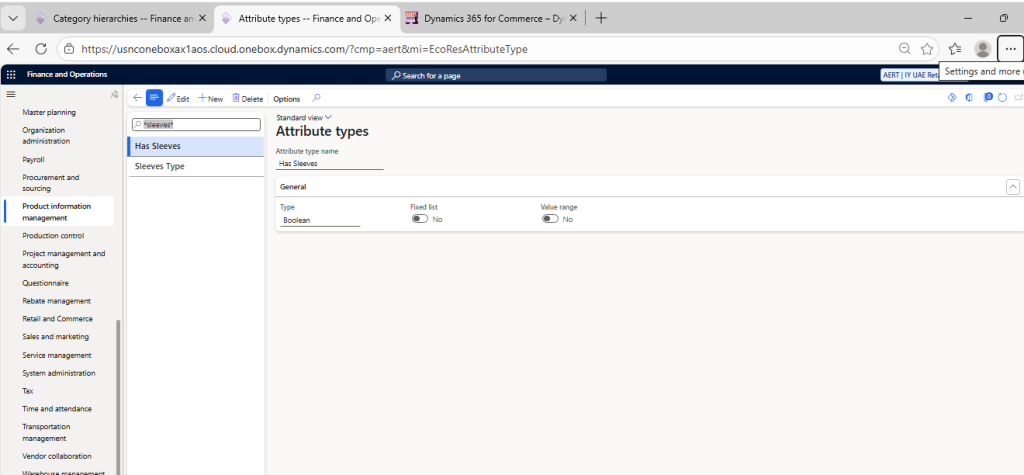
Create the following attribute types:
- Has Sleeves
- Name: Has Sleeves
- Type: Boolean
- Sleeves Type
- Name: Sleeves Type
- Type: Text
- Fixed List: Yes
- Values:
- Long Sleeves
- Short Sleeves
Step 2: Create Attributes
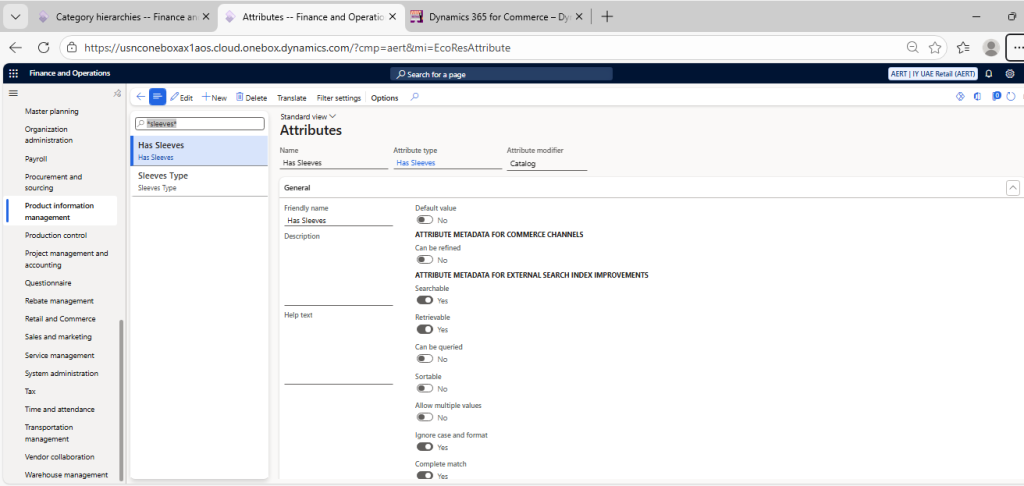
Navigate to:
Product Information Management > Setup > Attributes > Attributes
Create the attributes using the attribute types defined above:
- Has Sleeves
- Attribute Name: Has Sleeves
- Attribute Type: Has Sleeves
- Sleeves Type
- Attribute Name: Sleeves Type
- Attribute Type: Sleeves Type
Step 3: Create an Attribute Group
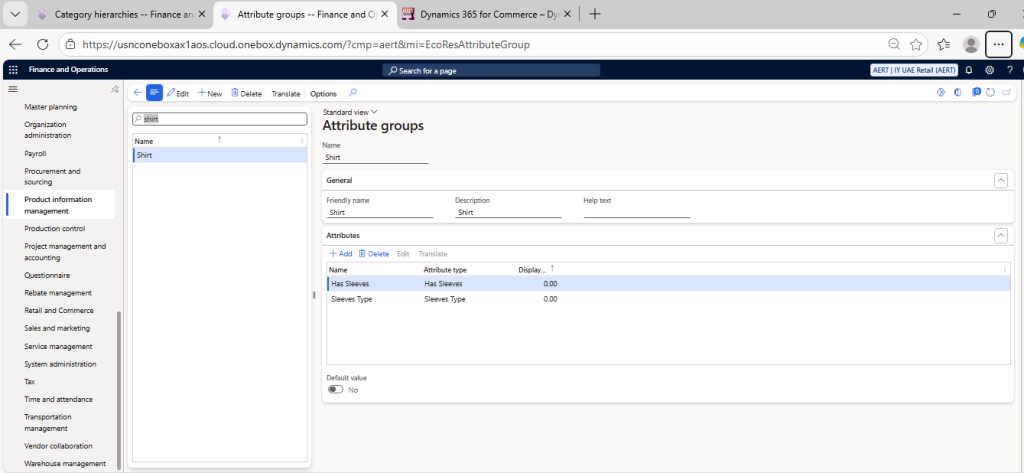
Navigate to:
Product Information Management > Setup > Attributes > Attribute Groups
- Click New
- Name the group: AERT-Shirt
- Add attributes: and search for
- Has Sleeves
- Sleeves Type
- Click Select and then OK
This attribute group can now be reused across multiple categories.
Assign Attribute Group to Category Hierarchies
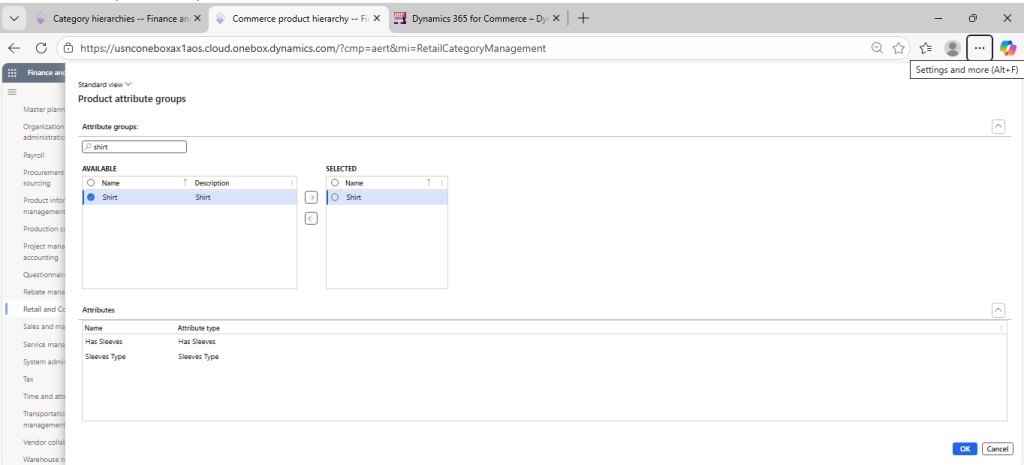
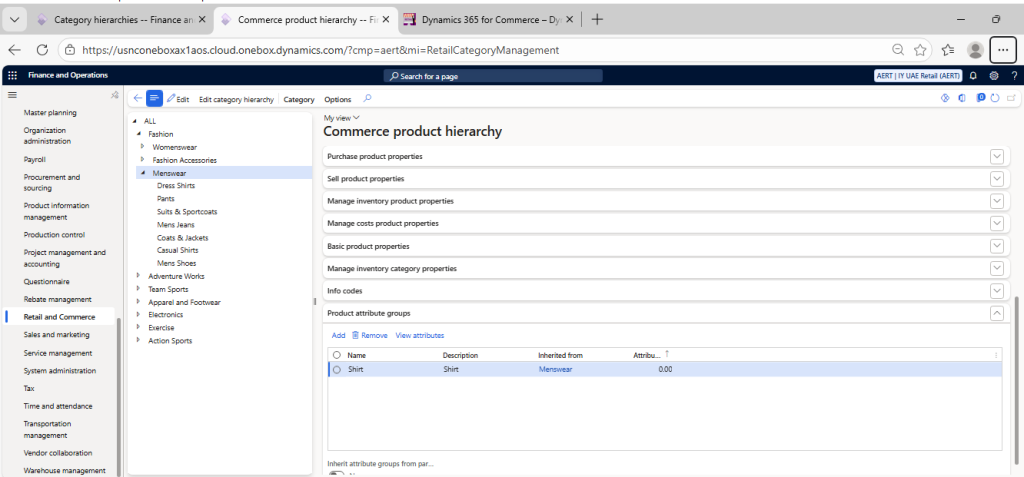
Retail and Commerce> Products and Categories > Commerce Products Hierarchy > Select the Category to which Attribute group need to assign then click on Product Attribute Group tab > Click on Add > Search for AERT-Shirt > OK
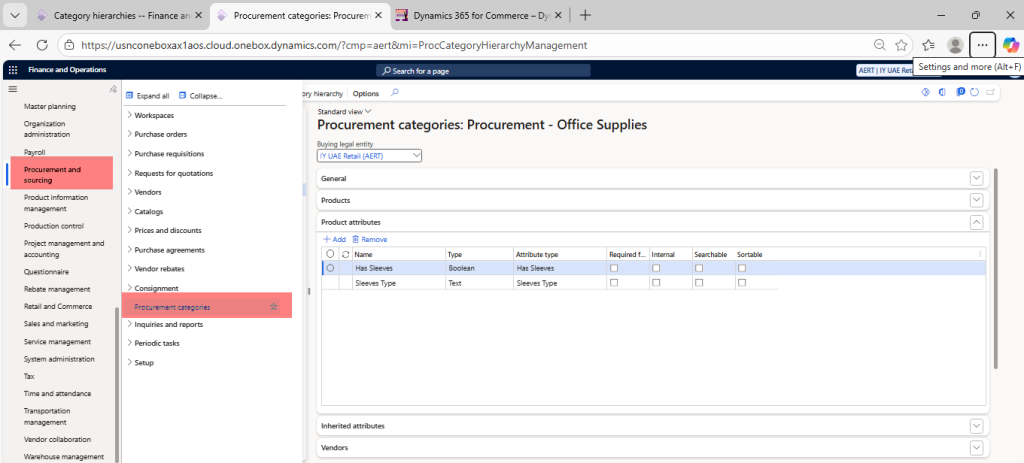
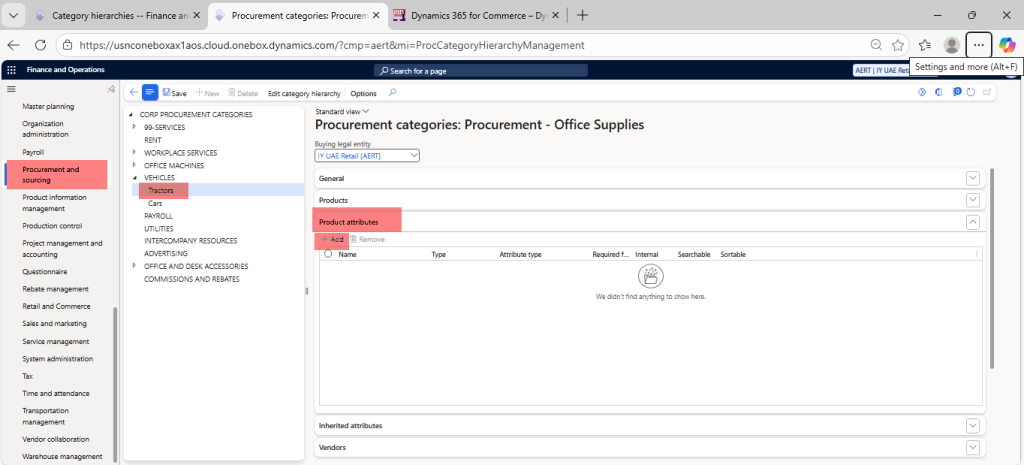
Assign Attributes to Procurement Categories
For Procurement Categories we can assign attribute not attribute group like we assign to commerce product category mention above
Navigate to Procurement & Sourcing > Procurement Categories
Steps:
- Select the relevant category
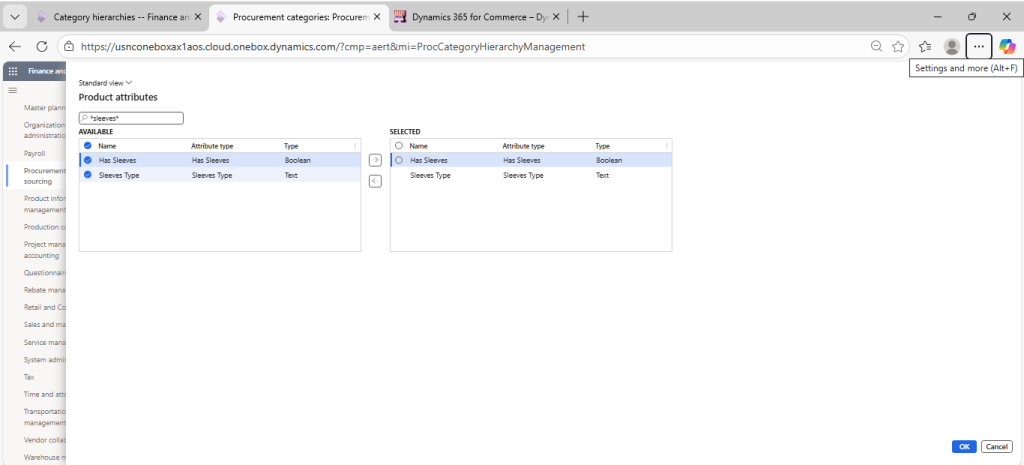
- Open the Product Attributes tab
- Add the Has Sleeves and Sleeves Type attribute created earlier