
In this blog post which the first part of legal entity setup in Dynamics 365. We will create and configure following options.
- User Setup
- Users
- Security roles assignment
- Duties & privileges
- Segregation of duties
- Number Sequences (Global)
- Shared number sequences (e.g., vouchers)
- Batch Job & Batch Groups
- Batch groups
- Batch server assignment
- Recurring batch jobs
User Stup
We will create and configure following users
| User ID | Name | Assigned Company |
|---|---|---|
| IYAE-RIZWAN | Rizwan Khan | IYAE |
| IYAE-STOREMGR | Store Manager | IYAE |
| IYAE-ACCOUNT | Accountant | IYAE |
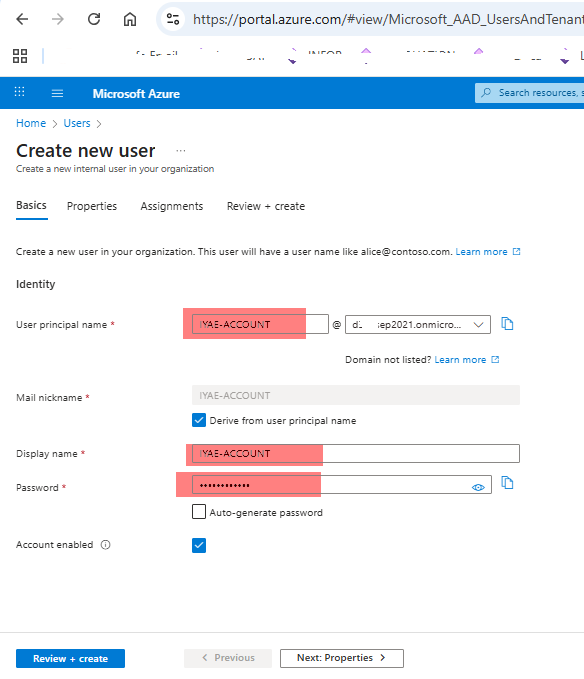
We need to create account in Microsoft Azure Portal first.
Login to Azure Portal and Navigate to Users
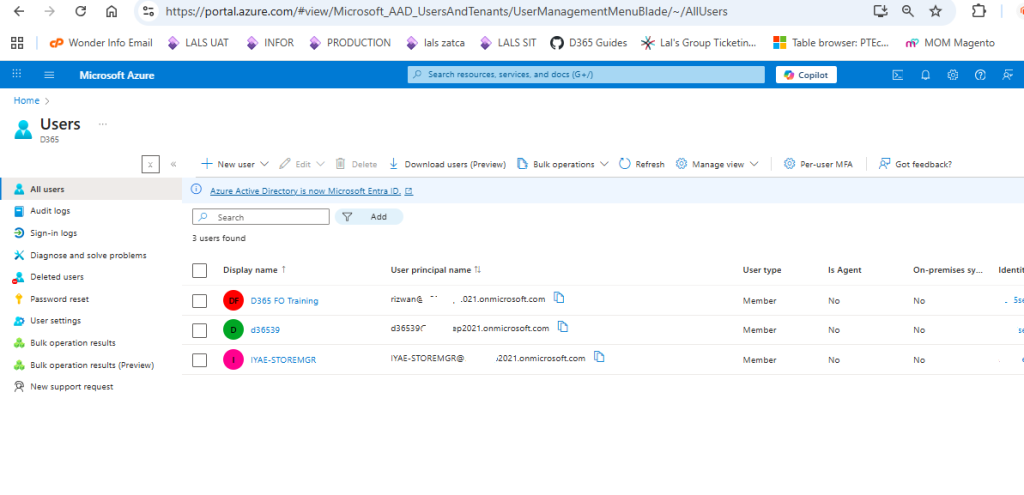
Click on New User option > Enter User principal name (IYAE-ACCOUNT) > Enter Username & Password > Click on Create
Now we will import this user in Dynamics 365
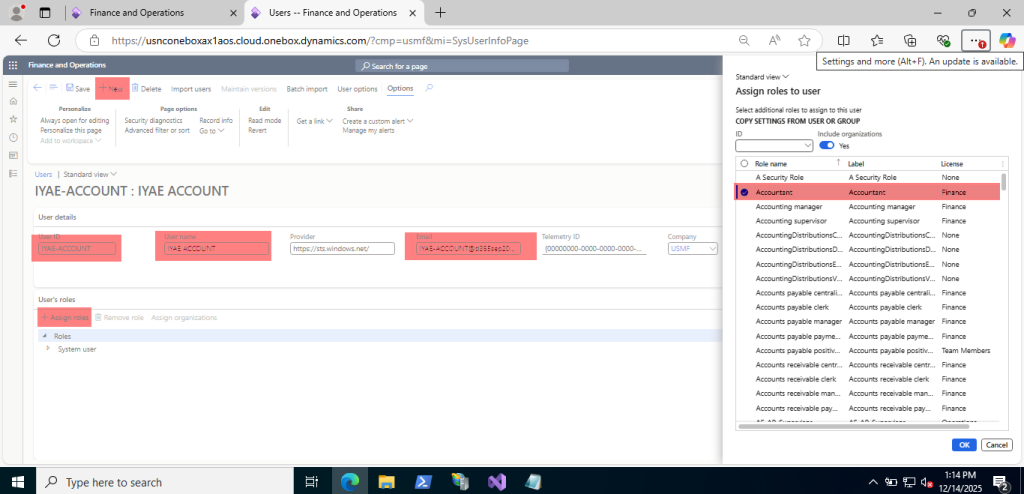
Navigate to System Administration > Users > Users > Click on new > Enter following Details User ID (IYAE-ACCOUNTANT) > User name (IYAE Accountant) > Email (iyae-accountant@yourdomain.com > Save
Assign Security Roles to Users IYAE-STOREMGR
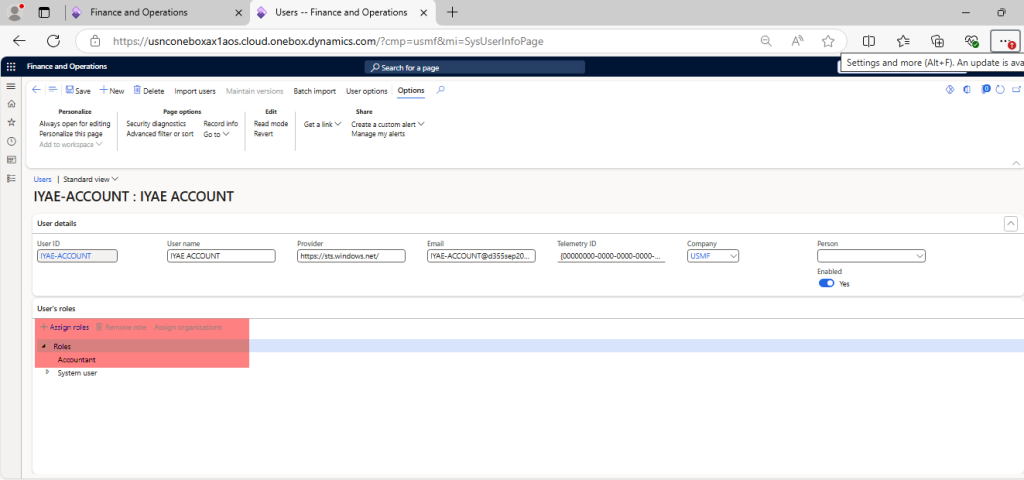
System Administration > Users > Users > Select a user > Assign roles >
- Assign:
- Accountant
Number Sequences
Number sequences define document numbers across the system. Number series are used for Master Records like Vender, Journals & Order like Purchase Order, Posted Transaction like Invoice Number.
Create number sequences needed globally:
| Purpose | Number sequence | Format | Scope |
|---|---|---|---|
| Worker ID | IYAE-WRK-#### | IYAE-WRK-0001 | Shared |
| Batch job ID | IYAE-BAT-##### | IYAE-BAT-00001 | Shared |
| Security role ID | IYAE-SRL-### | IYAE-SRL-001 | Shared |
Example: Creating Worker ID Number Sequence
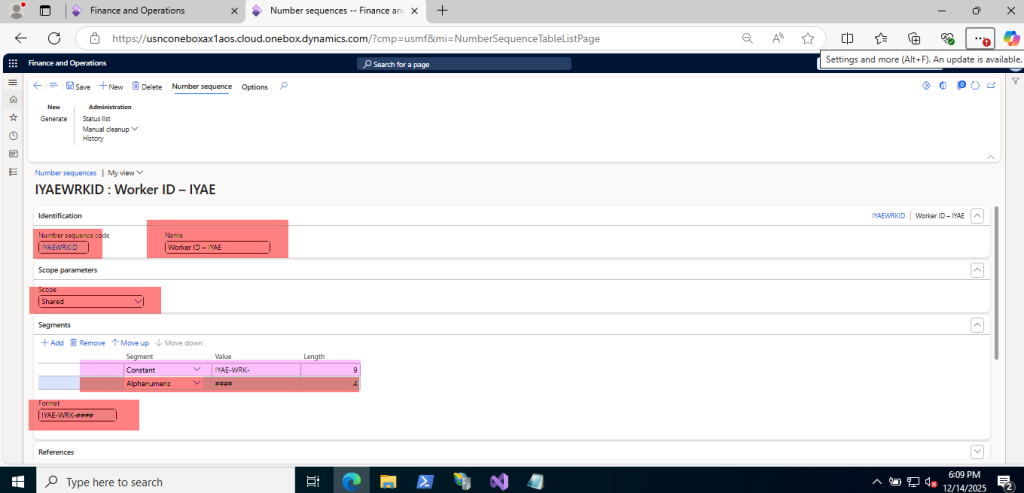
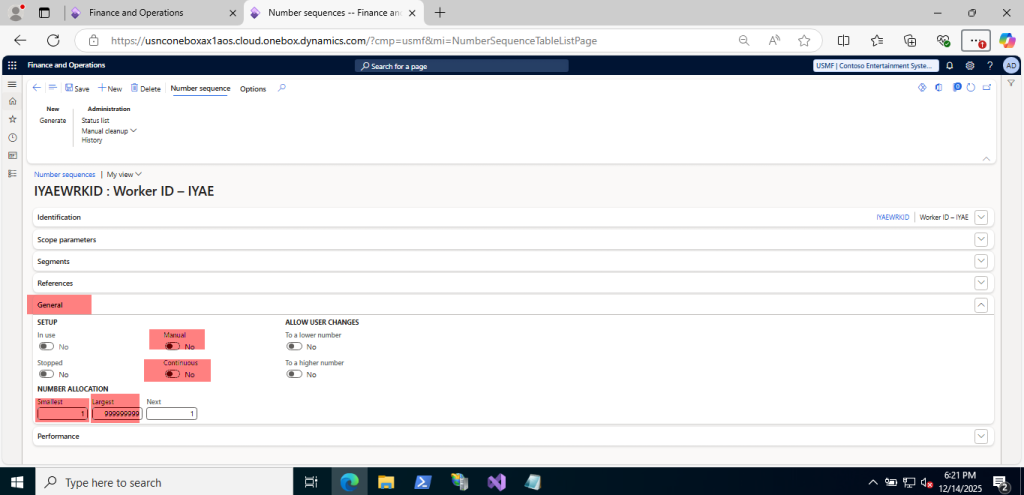
Navigate to Organization administration > Number sequences > Number sequences > Click New > Number sequence code: IYAEWRKID > Name: Worker ID – IYAE > Scope: Shared > Format: IYAE-WRK-#### > Continuous: Yes > Save.
Alphanumeric – Number which increases every time the number sequence is
used, replacing the number signs (#) in the format with the next number. The
length of the alphanumeric segment must cover the largest number (specified
on the tab General).
Constant – Segments for prefixes (e.g., for a format “INV#####” or “12#####”)
and for suffixes (e.g., for a format “#####-INV”). In general, prefixes are
preferable since they are easier to use (e.g., for filtering).
Other types – Segments with the type Company, Legal entity, Operating unit or
Fiscal calendar period are only available if they are included in the Scope of the
number sequence.
General Options
Pre-Allocation Numbers
On the tab Performance in the Number sequence detail form, we can set pre-allocation to yes, to pre-load number from database to computer memory for faster access & better performance. Pre-Allocation should not be used with continuous number series. We can see the pre-allocated list of number by click on Status List. To remove / Free the pre-allocated number, Click on Manual Clean up option
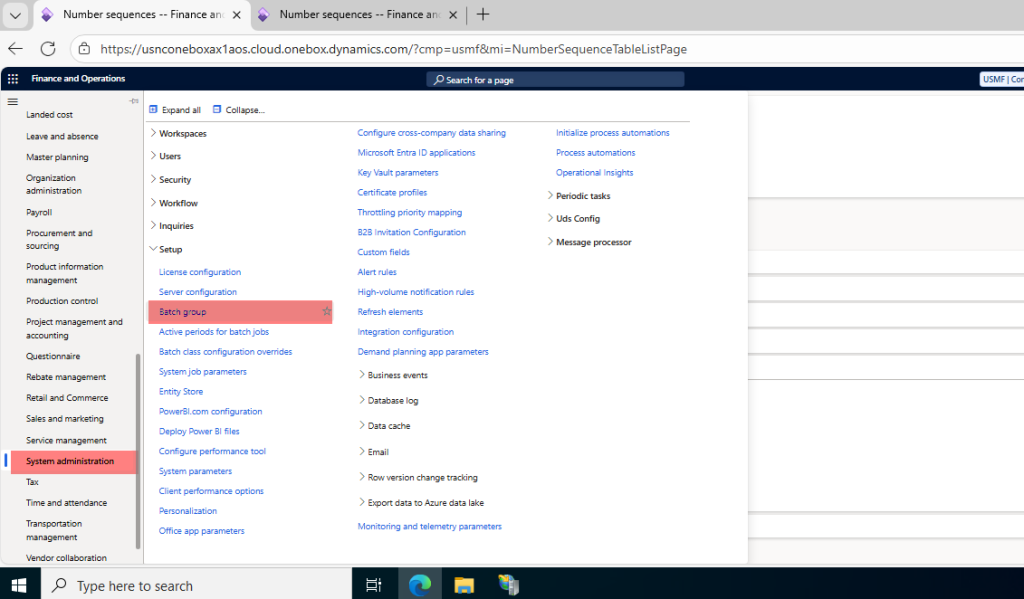
Batch Job & Batch Groups
Batch groups help control where jobs run.
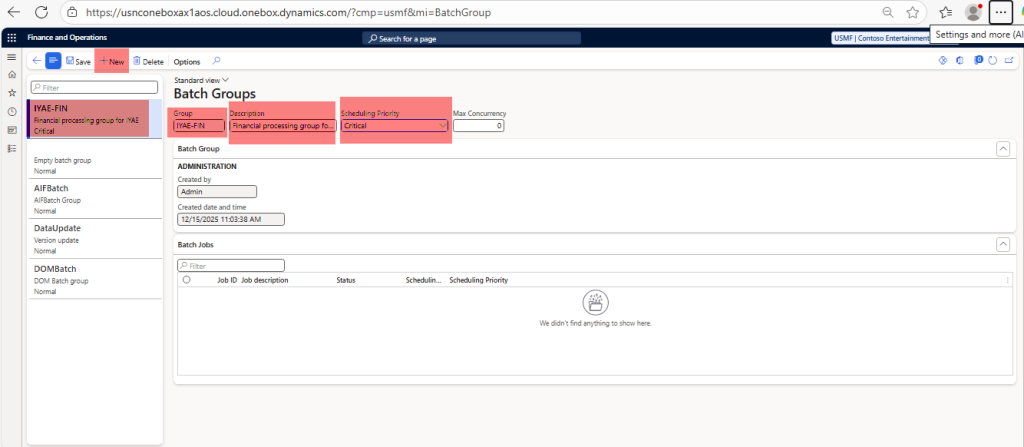
To create Batch Group > Navigate to System Administration > Batch jobs > Batch groups > Click New > Batch group: IYAE-FIN > Description: Financial processing group for IYAE > Save