

Address Format Setup
Before setting up any legal entity, Address setup is very important.
Create a new address format for UAE located legal entities
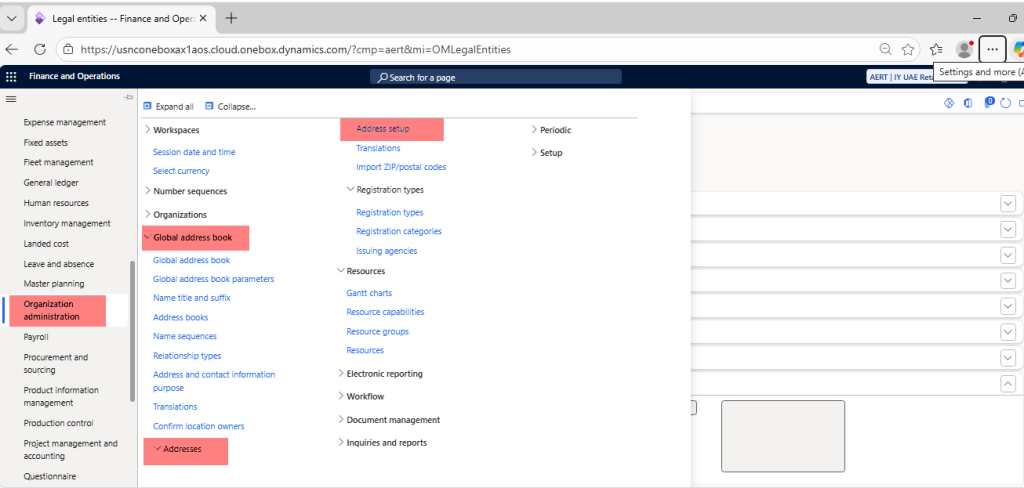
Navigation to Organization Administration Module > Global Address Book > Address > Address setup
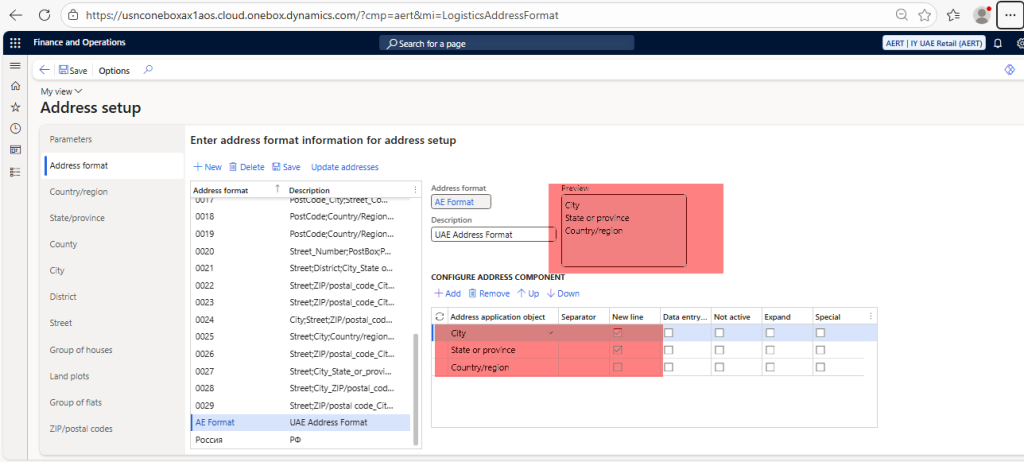
Click on New > Address Format (AE Format) > Description (UAE Address Format) > Save
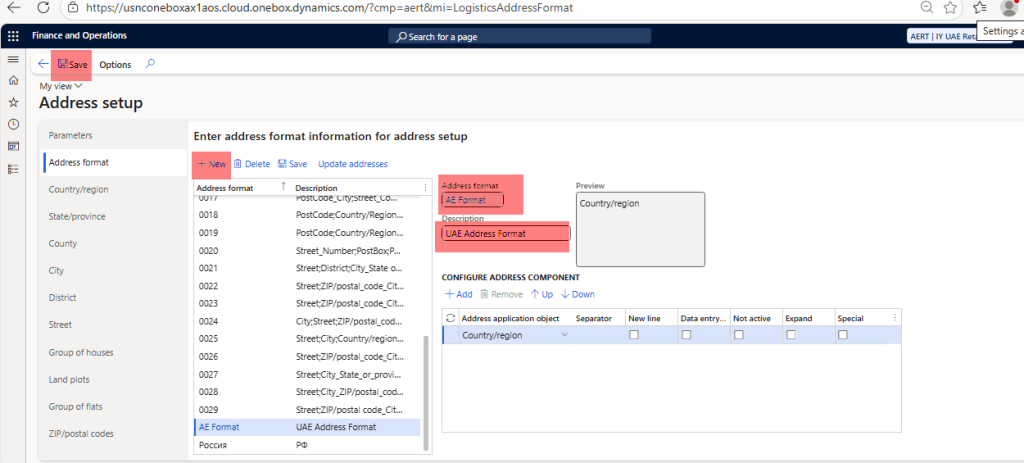
Add City, State & Country component in Address component section
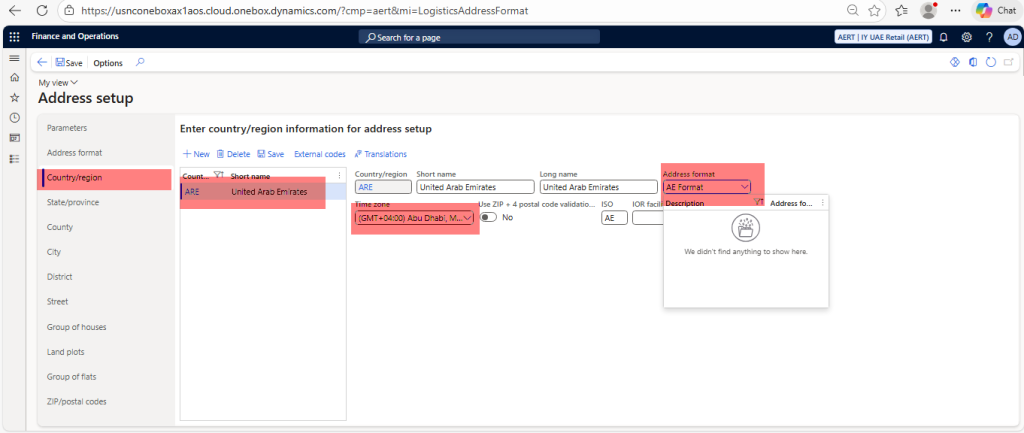
Click on Country/Region tab > Choose ARE > Assign the newly created Address Format to ARE Country
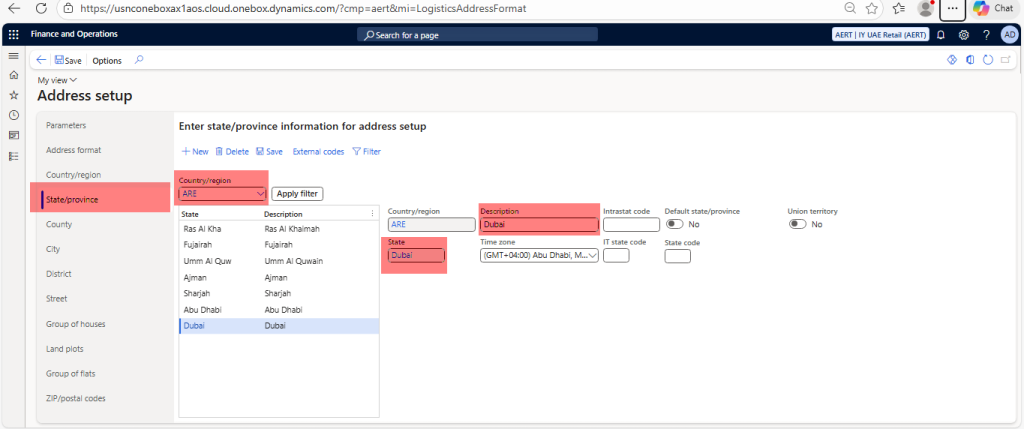
Click on State/Province tab > Create record for all seven states
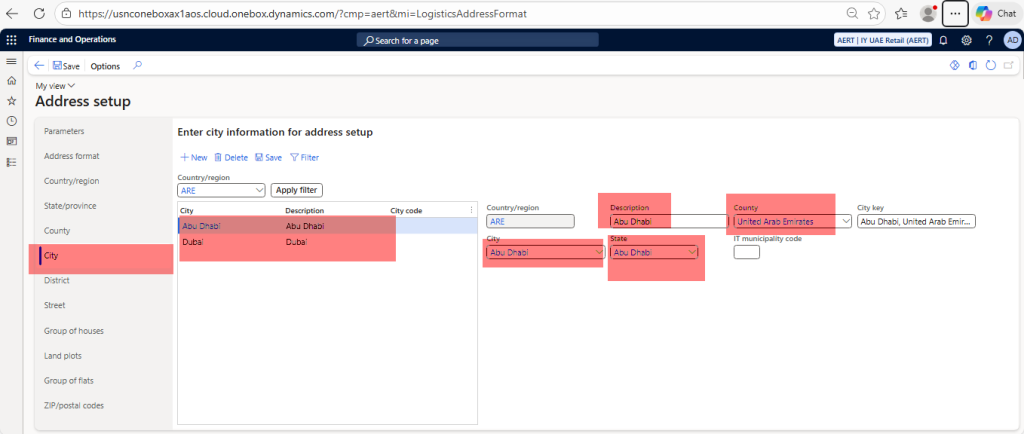
Create all the Cities for all emirates like below
Organization Structure – Legal Entity Creation
To Create Legal Entity > Navigate to Organization administration > Organizations > Legal entities > Click on New > Name (IY UAE Retail (AERT)) > Company (AERT) > Country (ARE) > OK
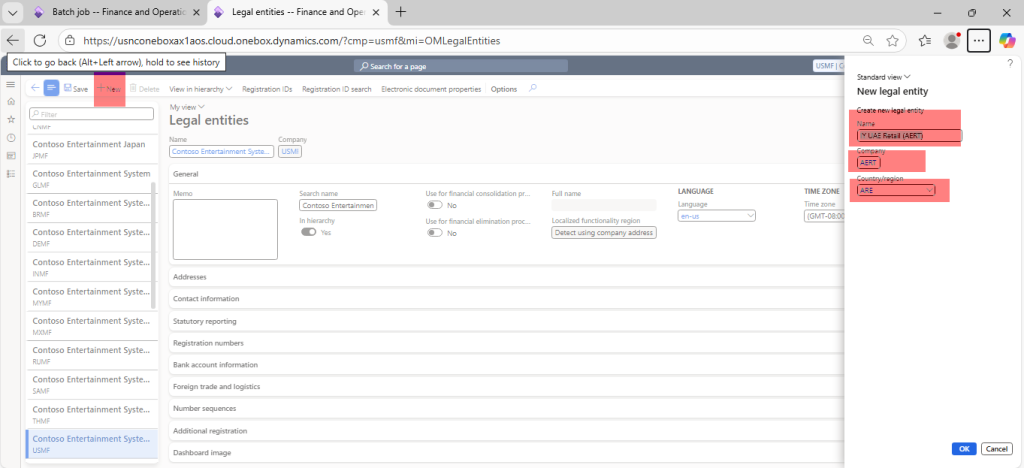
Set Language code on General tab (en-us)
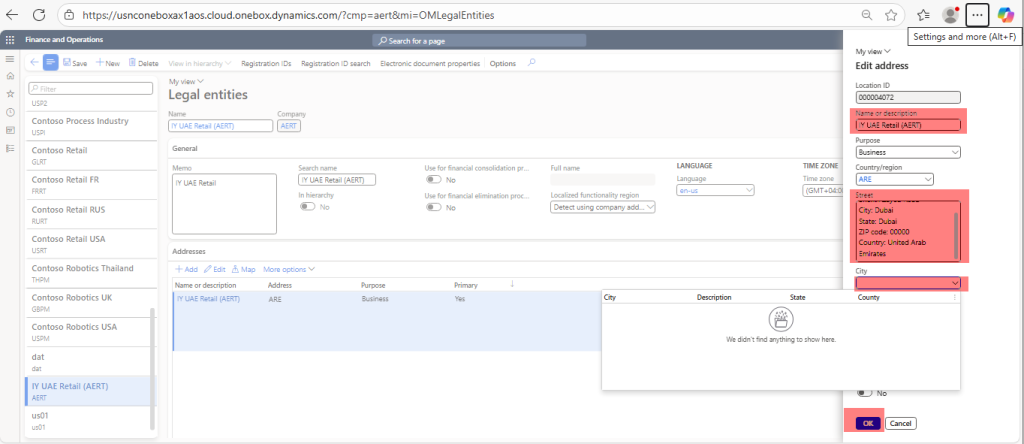
Setup of newly created entity > Click on Address tab > Click Edit > Enter address as below, If City, State and Country dropdown is not listing, then we need to setup Address Format in next section
Number Sequence Setup for legal Entity
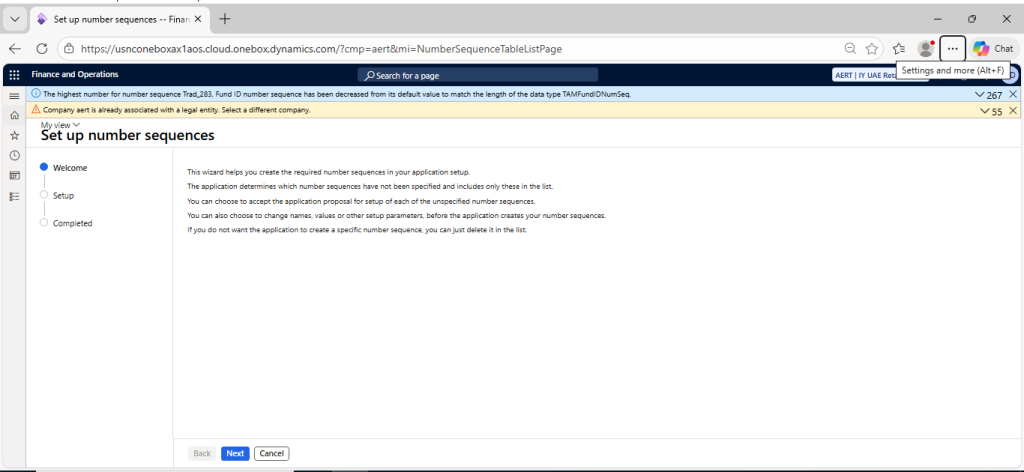
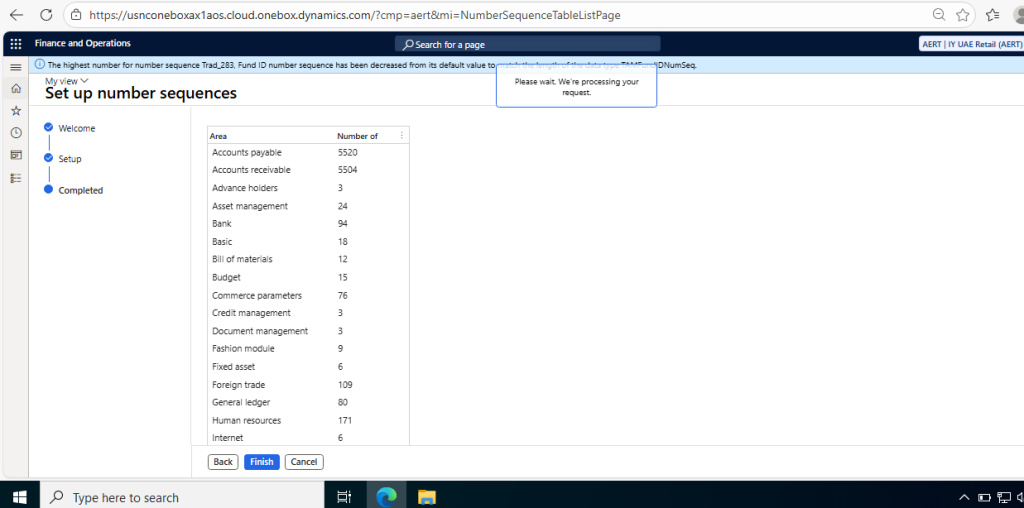
Number Sequence setup is mandatory for legal entity to work properly in Dynamics 365. We can use wizard to generate all necessary number sequence for legal entities and later we can change sequence as per our requirements
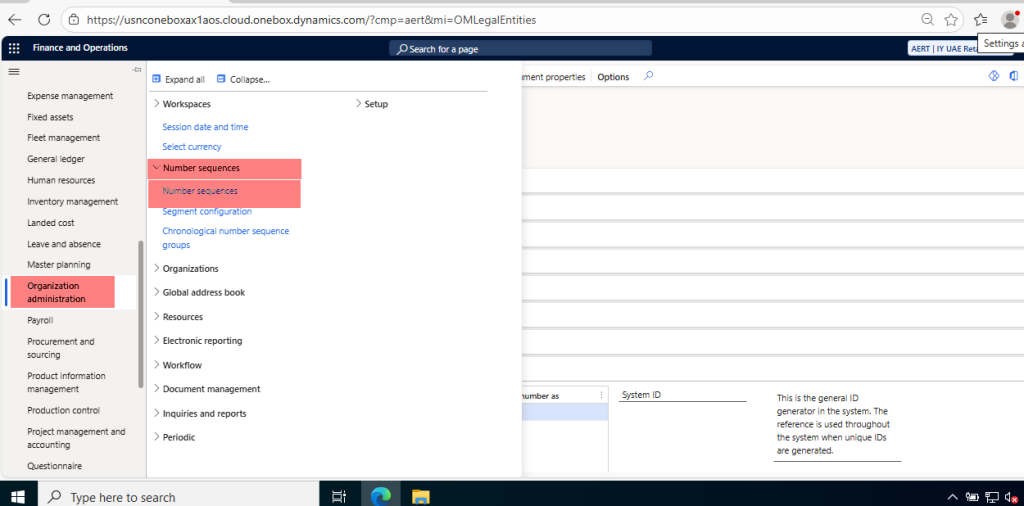
Navigate to Organization Administration > Number Sequences > Number Sequences
Click on Generate option
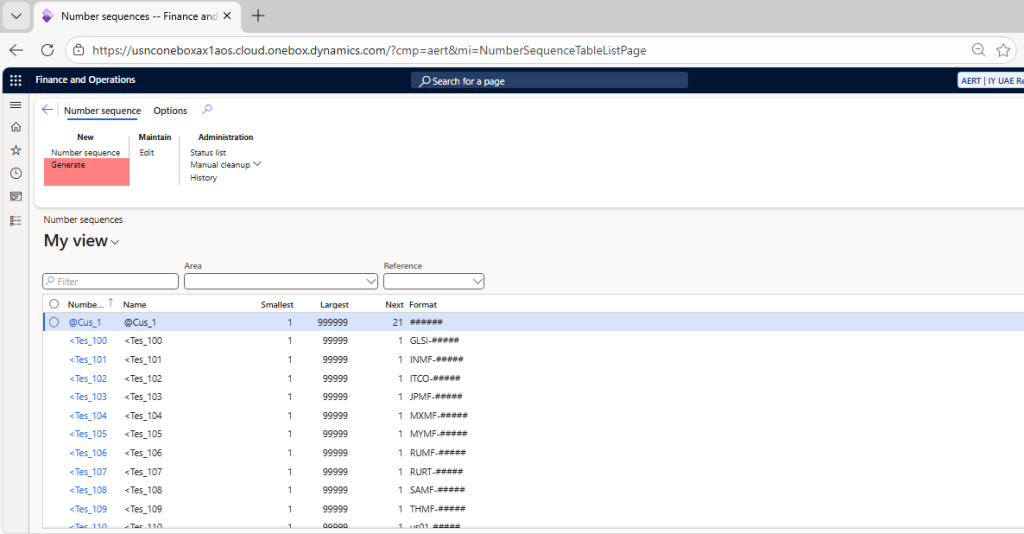
Follow the wizard like below